
New phone setup checklist for parents (first 30 minutes)
23 July 2026 · James Pearson
Short answer: Before your child unlocks that new phone for good, spend 30 focused minutes: create a child account under your control, turn on the built-in controls, add a content filter, set a couple of realistic schedules, and, most importantly, have a short, warm conversation about how it will all work. Do these in order and you will not have to scramble later.
Handing over a first phone is a milestone, not an emergency. The goal is not to lock everything down, but to set sensible defaults so your child can grow into more freedom over time. Here is a calm, ordered checklist you can work through in about half an hour.
Before you start (2 minutes)
Gather what you need so you are not hunting mid-setup:
- Your own phone nearby (for pairing and approvals).
- The child’s account details, or your family account login.
- The Wi-Fi password.
- A quiet ten-minute window where nobody is rushed.
Do this with your child sitting next to you, not in secret. Setup done together sets the tone for everything that follows.
1. Create the right account (5 minutes)
The single most important step is the account, because it controls everything else.
- On Android: use a child Google account added through Family Link, not an adult account. Family Link lets you approve apps and see basic activity. See Google’s Family Link setup.
- On iPhone: set up the phone with a child Apple Account inside your Family Sharing group, and turn on Screen Time with a passcode only you know. Apple’s Screen Time guide walks through it.
If the phone is second-hand, factory-reset it first and sign in fresh. An account inherited from a sibling or a shop demo will carry settings you cannot see.
2. Turn on the built-in controls (5 minutes)
Both platforms have solid controls that cost nothing:
- Set an app-store age rating so purchases and downloads match your child’s age.
- Require your approval for new app installs.
- Turn on web content restrictions to filter obviously adult sites in the default browser.
- Disable or restrict in-app purchases.
These built-in tools are a strong baseline. Internet Matters has clear, device-by-device walkthroughs if you get stuck, see their parental controls hub.
3. Add a content filter that works inside apps (5 minutes)
The built-in web restrictions filter browsers well, but a lot of content today lives inside apps, social feeds, video apps, chat. This is where a dedicated filter helps.
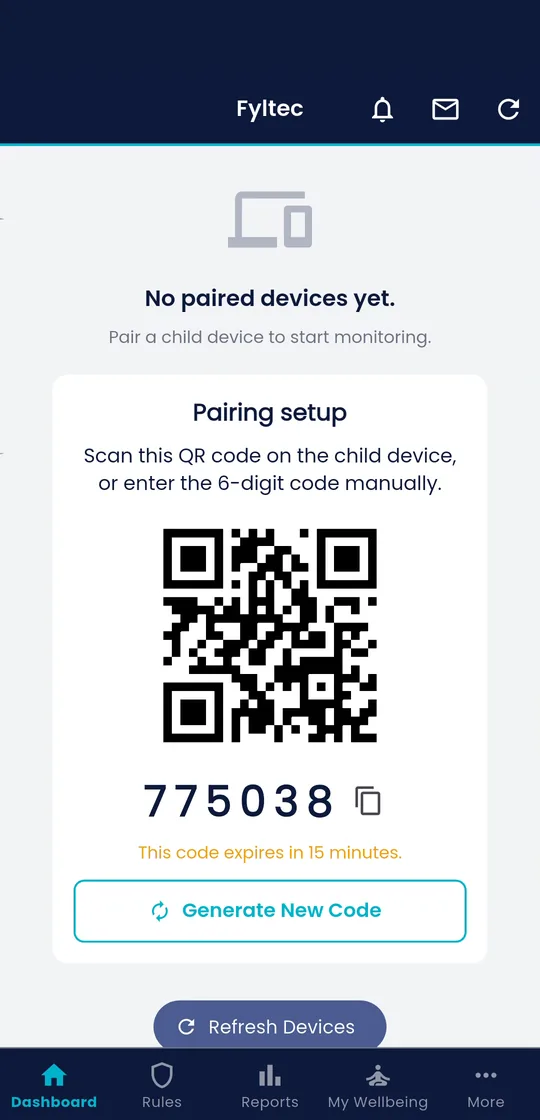
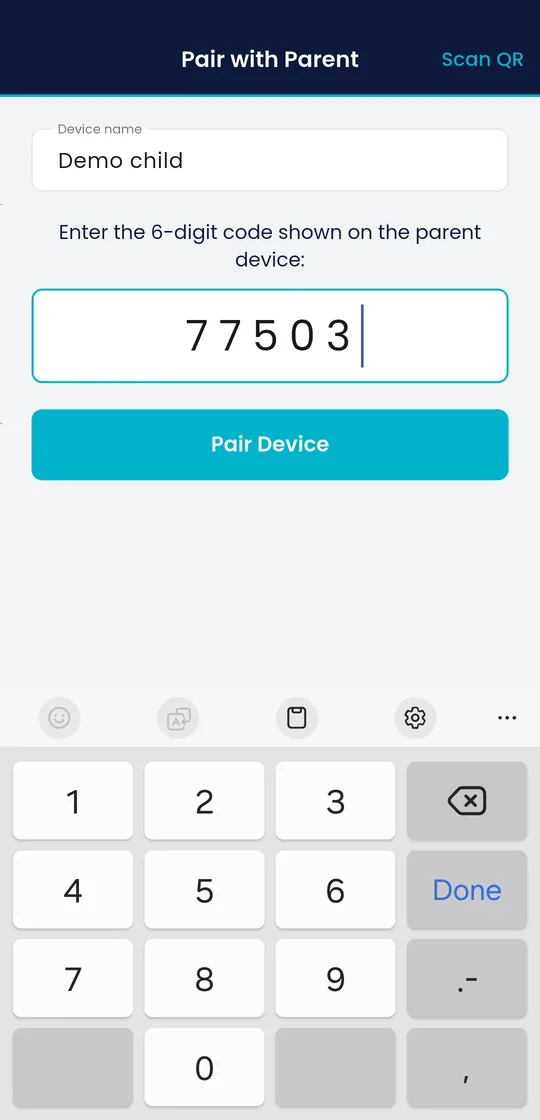
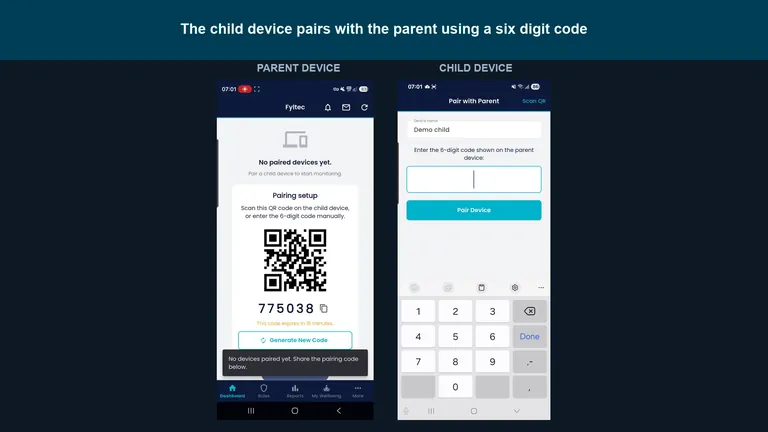 Watch: the full parent and child setup, side by sidePairing, protection, app controls and location, recorded on Android. The parent app is the same on iPhone. 5:22 on YouTube.
Fyltec uses DNS content filtering, which blocks unwanted content across the whole device, inside apps, not just in the browser. During setup you pair the child’s phone to your parent app, choose a filtering strictness that suits their age, and you are done. You can adjust categories later as they mature.
Set the filter now while the phone is fresh, so there is no “before and after” your child has to negotiate.
4. Set a couple of realistic schedules (5 minutes)
Do not try to plan every hour. Start with two or three schedules you will actually keep:
- A wind-down in the evening (for example, apps pause an hour before bed).
- School hours on weekdays.
- Maybe a homework block in the late afternoon.
In Fyltec these are screen time schedules, part of the Premium plan; when a schedule kicks in, the device can pause internet access while calls and texts still work, so your child can always reach you. That distinction matters: a “lock” is a gentle pause, not a punishment that cuts them off entirely.
Keep the first schedules loose. You can tighten them once you see how the phone actually gets used. A schedule you quietly abandon teaches less than a modest one you keep.
5. Decide on location and alerts (3 minutes)
If knowing your child arrived safely gives you peace of mind, turn on device location (a Premium feature in Fyltec), and tell your child it is on. Framed openly, location is about safety and logistics, not spying.
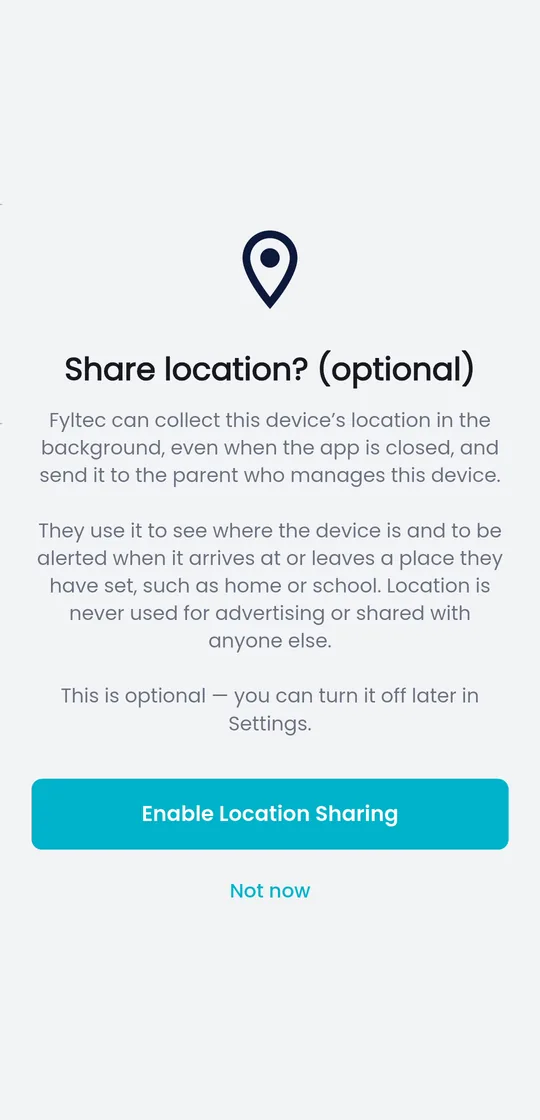
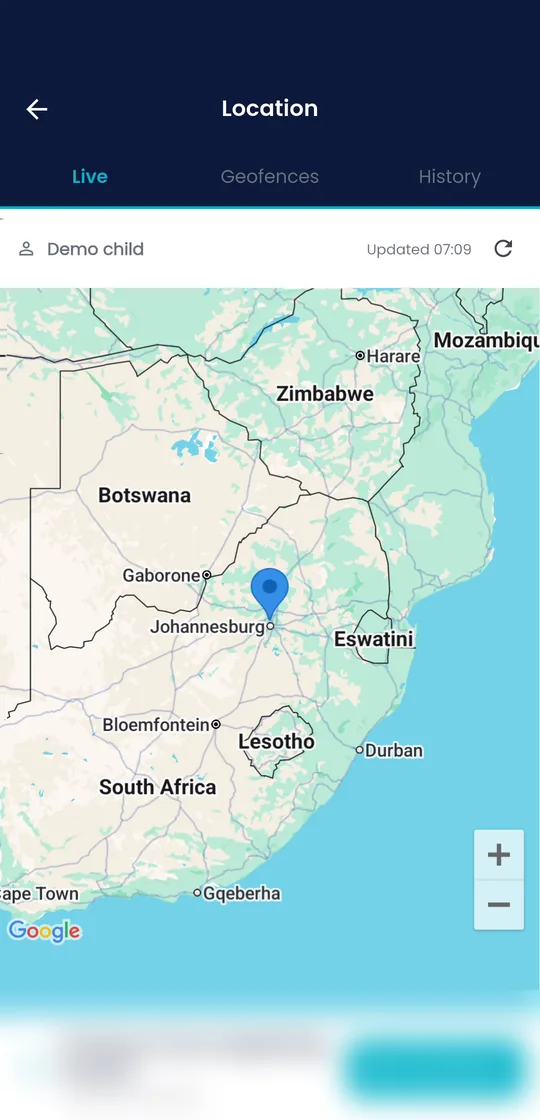
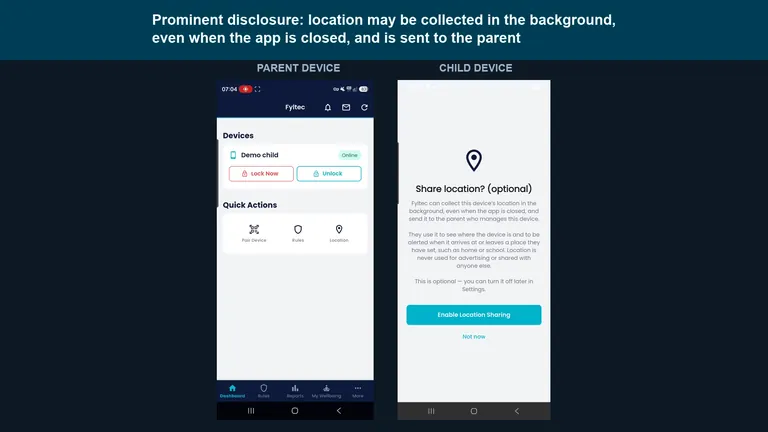 Watch: sharing a child device's location with a parentHow a child's phone asks before sharing location, and what the parent sees. 0:57 on YouTube.
Turn on tamper alerts too, so you are notified if protections are removed. Again, say so out loud. The point of every setting is that your child knows it exists.
6. Have the conversation (5 minutes)
This is the step people skip, and it matters most. Keep it short and warm:
- Why the controls exist: “These help you learn to use this well, not because I don’t trust you.”
- What you can and can’t see: be honest. Mislabelling monitoring as trust backfires.
- How to come to you: make it clear that if something upsetting shows up, they can tell you without getting the phone taken away.
- How freedom grows: agree that settings will loosen as they show they can handle more.
Digital-wellbeing writers like Devorah Heitner and Anya Kamenetz make the same point repeatedly: mentoring beats surveillance. Tools support the relationship; they do not replace it. Common Sense Media’s parents’ guide to parental controls is a good primer to read together later.
The 30-minute checklist at a glance
- Gather logins and Wi-Fi; sit together.
- Create a child account (Family Link / Family Sharing).
- Turn on built-in store, install and web controls.
- Add an in-app content filter and set strictness by age.
- Set two or three realistic schedules.
- Enable location and tamper alerts, openly.
- Have the short, honest conversation.
Print it, tick it off, done.
Frequently asked questions
Do I really need a separate filter if the phone already has parental controls?
Built-in controls are a great baseline, but they mainly filter the browser and app store. A DNS-level filter like Fyltec also blocks unwanted content inside apps and video feeds, which is where a lot of it now appears. Use both together.
My child is older, is 30 minutes of setup overkill?
No, but adjust the strictness. An older teen needs looser filters and lighter schedules, plus a bigger conversation about judgement and freedom. Same checklist, gentler settings.
Should I tell my child everything I’ve set up?
Yes. Openness is the whole point. Hidden controls feel like surveillance and erode trust the day they are discovered. Explaining each setting turns it into mentoring.
Fyltec includes a 7-day free trial, so you can walk through this whole checklist before deciding anything, see plans and pricing.