
How to set parental controls on iPhone in 2026
22 July 2026 · James Pearson
Short answer: set up Screen Time with a parent only passcode, lock content restrictions, then add routines for bedtime and study time. This gives families a safer iPhone setup with less daily negotiation.
Start with your control goal
Choose a simple goal before you configure settings.
- Reduce exposure to inappropriate content.
- Protect school focus and sleep.
- Keep communication healthy and age appropriate.
A clear goal helps you decide which controls to enable first.
Step 1: Turn on Screen Time with a parent passcode
- Open Settings.
- Tap Screen Time.
- Choose This is My Child iPhone.
- Set a passcode your child does not know.
- Keep that passcode separate from device unlock codes.
Official guide: Apple Screen Time
Step 2: Lock content and privacy restrictions
- In Screen Time open Content and Privacy Restrictions.
- Turn restrictions on.
- Limit explicit content and web content.
- Restrict account changes and passcode changes.
- Restrict app installs and in app purchases as needed.
This is the core safety layer for most families.
Step 3: Set useful time boundaries
- Configure Downtime for sleep.
- Configure App Limits for social and entertainment apps.
- Keep Always Allowed focused on essential apps only.
Use realistic limits first, then adjust after one week.
Step 4: Pair controls with family rules
Settings are stronger when your child knows the why.
- Explain what is being limited.
- Explain when limits can be relaxed.
- Keep a weekly check in to review what is working.
This improves cooperation and reduces arguments.
Step 5: Fill common iPhone gaps
Some parents expect one setting to cover every scenario. In reality some app and web behaviors need extra attention.
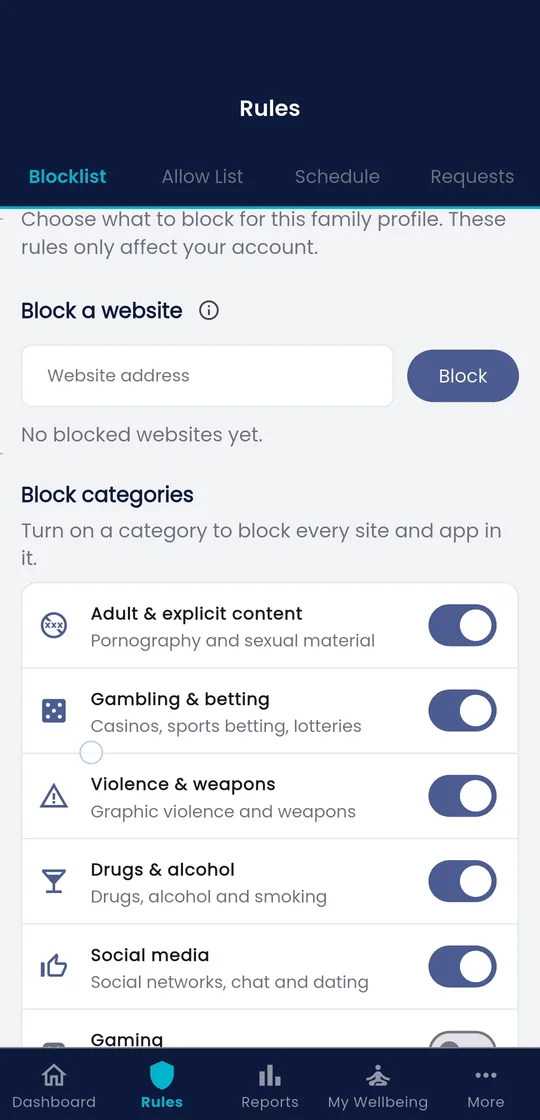
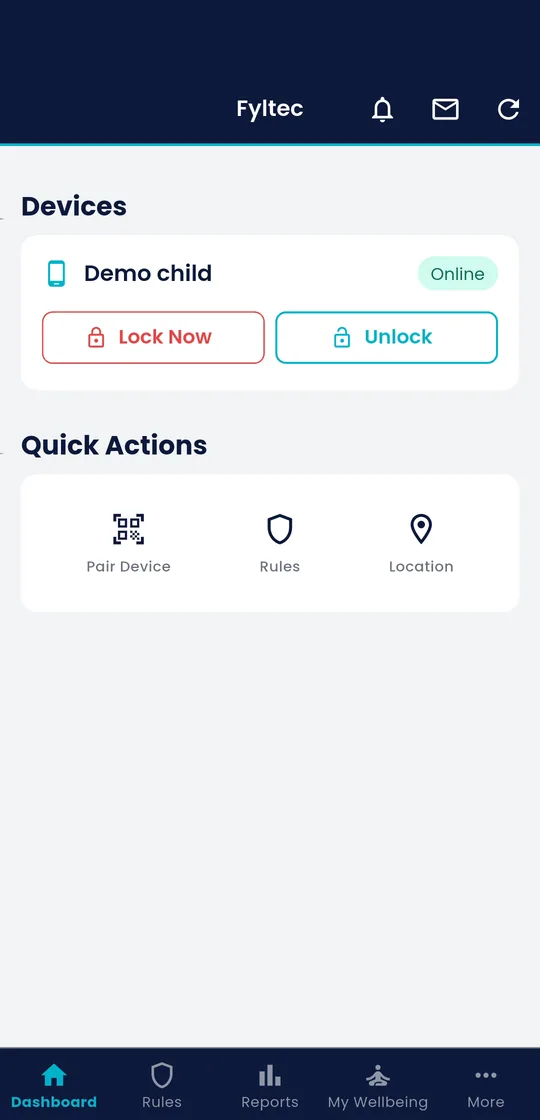
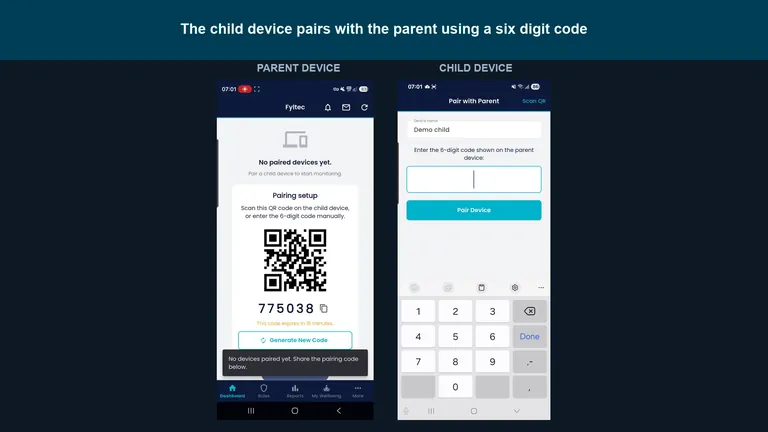 Watch: the full parent and child setup, side by sidePairing, protection, app controls and location, recorded on Android. The parent app is the same on iPhone. 5:22 on YouTube.
- Test blocked categories regularly.
- Watch for new apps that bypass old routines.
- Keep your child device updated.
A practical review routine is as important as setup day.
Frequently asked questions
Can iPhone controls stop all risky content?
No tool can guarantee perfect coverage. A layered approach and regular review provide better protection.
What if my child guesses the Screen Time passcode?
Change it immediately and avoid patterns linked to birthdays or simple sequences.
Should I track every action on my child phone?
Focus on safety outcomes and healthy habits. Keep monitoring proportional to age and risk.
Further reading
- Apple: Use parental controls on your child’s iPhone, official Screen Time & restrictions.
- eSafety Commissioner: screen time advice, evidence-based guidance for families.
- Common Sense Media: parents’ guide to parental controls, independent reviews and advice.
- How to set up parental controls on Android, the Android counterpart to this guide.
- The complete guide to parental controls, how all the layers fit together.
If you want one place to manage filtering, schedules, and parent alerts, you can start a 7 day Fyltec trial.