
How to block adult content on your child's phone
14 July 2026 · James Pearson
Short answer: the most reliable way to block adult content is to combine built in parental controls with network level filtering, then lock changes behind a parent only passcode. Built in controls help, but they are easy to bypass if a child can switch DNS, install a new browser, or use in app web views. A layered setup gives better protection and fewer gaps.
Why built in controls alone are not always enough
Apple Screen Time and Google Family Link are useful first steps, but many families still run into gaps:
- Some apps open web content inside the app, outside your normal browser filters.
- DNS settings can be changed on-device unless parent controls are locked down.
- New browsers or VPN apps can bypass basic restrictions.
The fix is simple: use device controls for account level restrictions and pair them with app aware filtering.
Step 1: Start with age-appropriate conversations
Before technical setup, explain what is changing and why. Keep the message practical: this is about safety, sleep, and focus, not punishment.
- Agree clear rules for what is allowed.
- Explain what happens if rules are bypassed.
- Review rules monthly as your child gets older.
This lowers conflict and improves long term compliance.
Step 2: Turn on built in controls
Android Family Link
- Install Google Family Link on the parent and child devices.
- Link the child account and approve supervised settings.
- Restrict app installs by age rating.
- Set SafeSearch and YouTube content restrictions.
- Disable unknown app sources where possible.
Reference: Google Family Link Help
iPhone Screen Time
- Open Settings -> Screen Time -> Turn On Screen Time.
- Select This is My Child’s iPhone.
- Set a Screen Time passcode only the parent knows.
- Enable Content & Privacy Restrictions.
- Under Content Restrictions, limit web content and explicit media.
Reference: Apple Screen Time
Step 3: Add app level and DNS level filtering
Device controls reduce risk, but filtering needs to work across browsers, social apps, and embedded links.
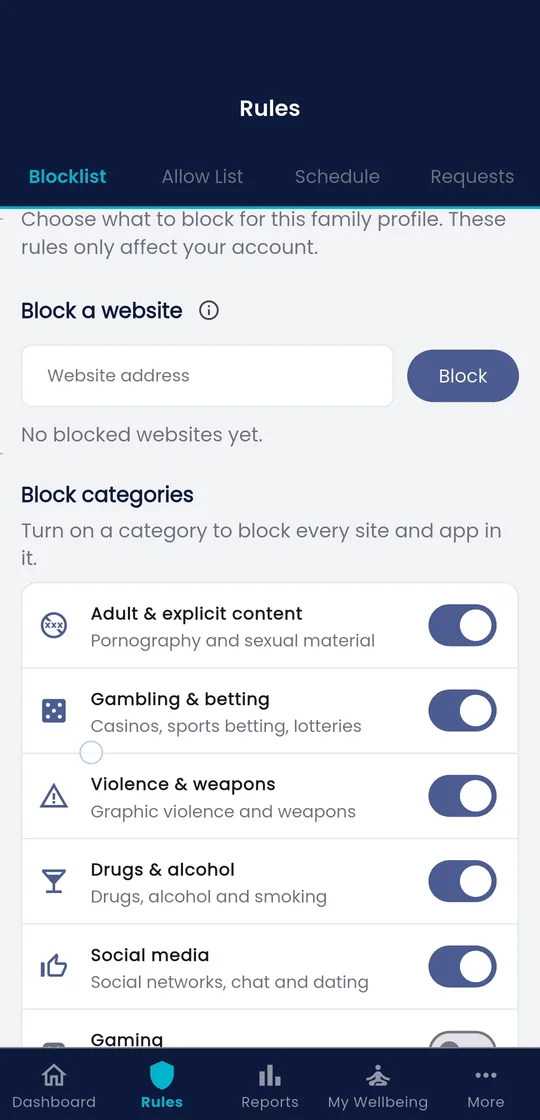
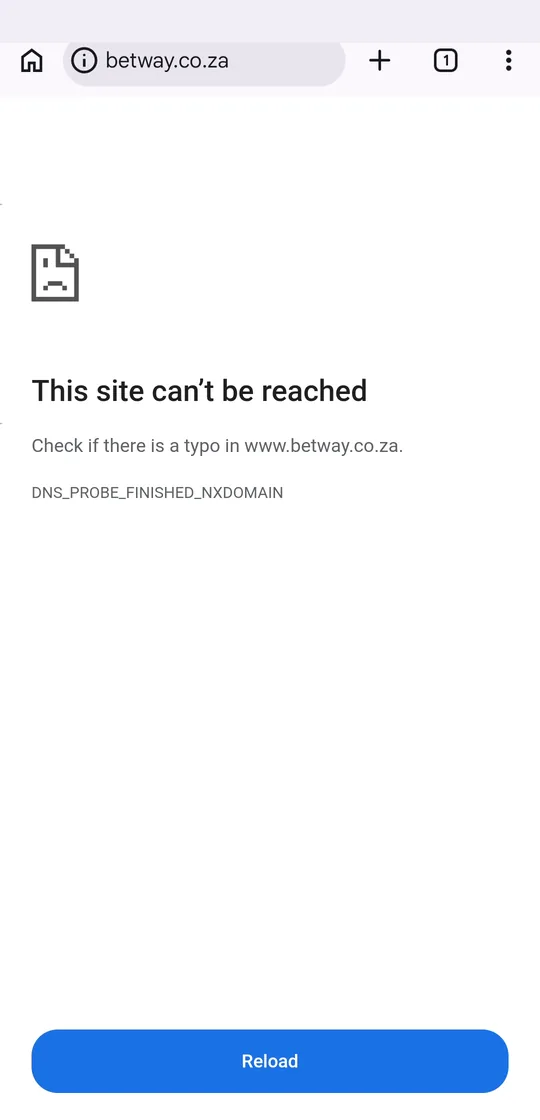
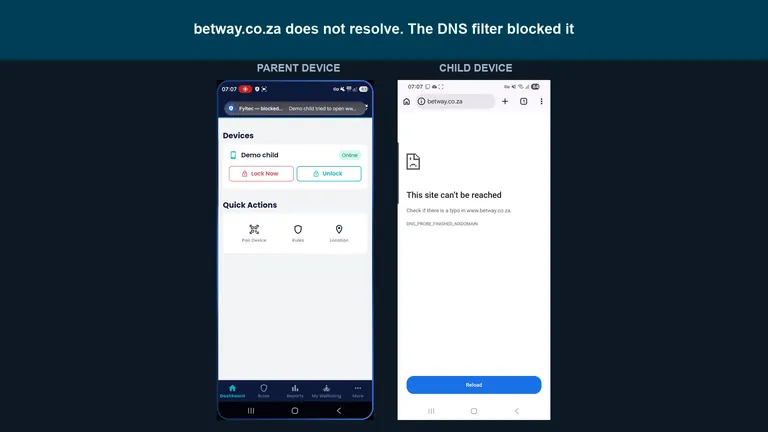 Watch: a blocked site on the child's phone, and the parent alertParent phone on the left, child phone on the right. Gambling is blocked, ChatGPT still works. 1:19 on YouTube.
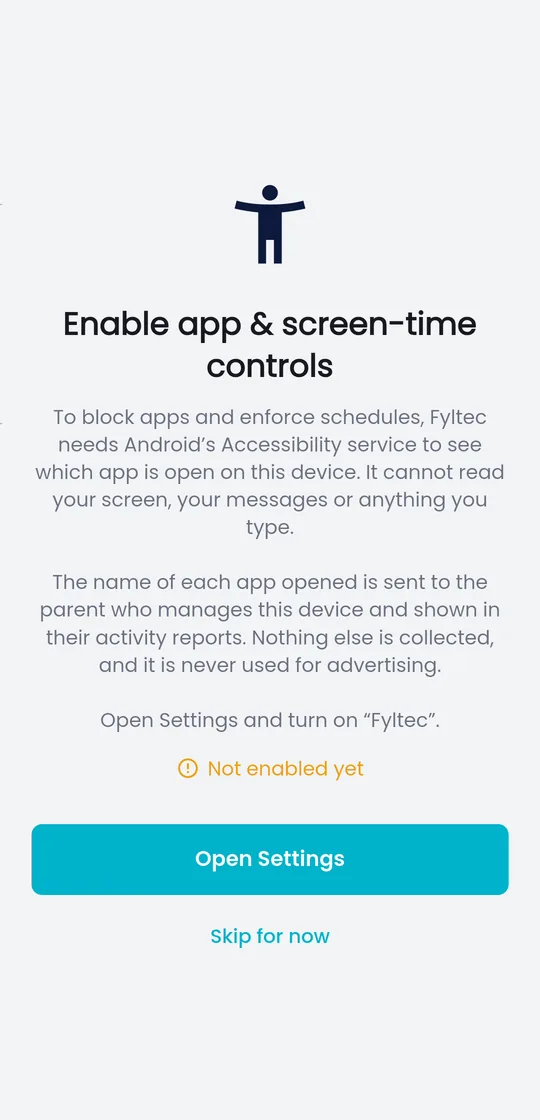
- Enable a filtering layer that blocks adult categories across app traffic.
- Keep DNS and protection settings locked behind the parent account.
- Test by opening known adult test domains and checking that they are blocked.
This is where many households see the biggest improvement: fewer loopholes and less manual monitoring.
Step 4: Block bypass routes
Most bypasses are predictable. Close these first:
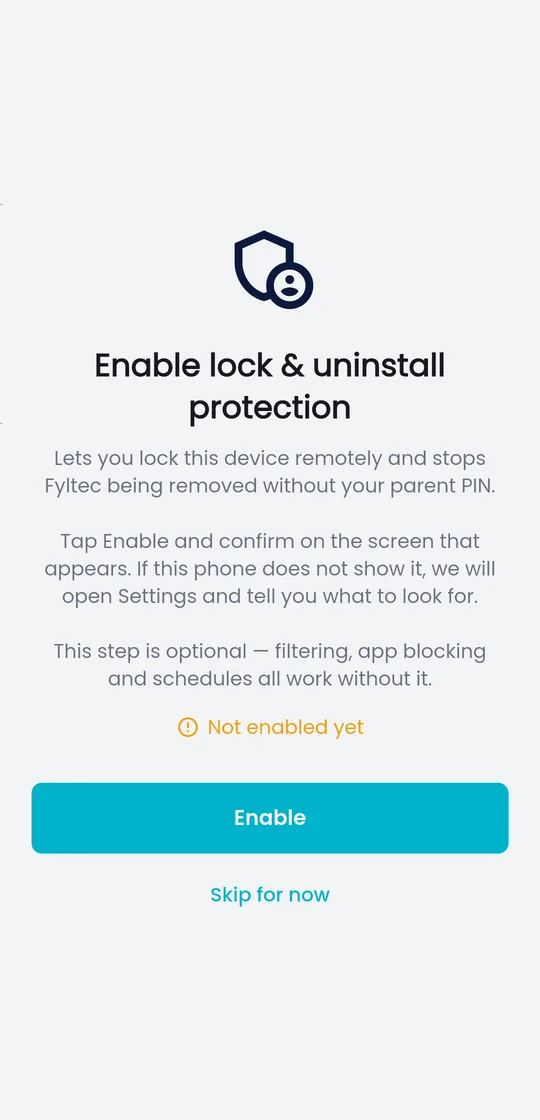
- Block VPN app installs (or require parent approval).
- Restrict DNS configuration changes.
- Remove unauthorized browsers.
- Keep the parent-control PIN/passcode private.
If your child is very technical, review settings weekly for the first month.
Step 5: Add schedules so protection stays consistent
Content protection works best when paired with time boundaries:
- Bedtime internet pause.
- Homework focus windows.
- Weekend vs weekday rules.
Automation reduces daily arguments and keeps rules consistent.
Common mistakes to avoid
- Relying on one control layer only.
- Sharing the parent passcode.
- Skipping in app filtering checks.
- Setting strict rules without explaining them first.
- Never revisiting rules as children mature.
Frequently asked questions
Can my child bypass adult-content blocking?
Sometimes, yes. That is why layered controls matter. Combining built-in controls, app-aware filtering, and locked settings significantly reduces bypass success.
Is DNS filtering enough by itself?
Not always. DNS filtering is powerful, but pairing it with device restrictions and app controls closes more gaps.
Will blocking adult content break normal internet use?
A good setup should not. You may occasionally allow-list a false positive domain, but most families can run category filtering without major disruption.
Does this work on any device, anywhere?
Yes. The setup applies globally, on both Android and iPhone. Whatever tools you choose, make sure they respect your family’s privacy and your local data-protection rules.
Final checklist
- Built in controls enabled (Family Link or Screen Time).
- Parent-only passcode set.
- Adult-content categories blocked.
- Bypass routes restricted.
- Bedtime and focus schedules enabled.
Further reading
- Apple: parental controls & Content Restrictions, official iPhone/iPad setup.
- Google Family Link Help, official Android supervision.
- Internet Matters: parental controls, independent device-by-device guides.
- How DNS filtering blocks adult sites, the mechanism behind category blocking.
- Signs a child is seeing inappropriate content, what to watch for.
If you want a simpler setup that combines filtering, schedules, and alerts in one place, you can start a 7 day Fyltec trial.